 ThumbProof
Thumbnail safe zone checker for badges and overlays
Inspect one thumbnail at 640, 360, 246 and 168 pixels with the duration badge, hover icons and progress bar drawn on top. A detail heatmap and a corner meter warn you when the bottom-right corner is too busy.
- 100% local, never uploaded
- No sign-up
- Free


Your thumbnail
Drop one 16:9 image, click the slot, or paste.
Overlay settings
Pick the width to inspect. 168px is the size used in sidebar lists.
Every display size
Visual audit score
Next steps
Check overlays in three steps
- 01
Add your thumbnail
Drop a 16:9 image, or load the busy-corner example.
- 02
Inspect each size
Switch between 640, 360, 246 and 168 pixels with the overlays and heatmap on.
- 03

Fix the corner
If the meter turns red, move key text and faces up and to the left.
Designing around interface overlays
Accounting for Native Interface Overlays
Video platforms automatically superimpose essential interface controls directly across thumbnail artwork.
When designing on an unobstructed canvas, it is easy to forget that the published image will have dynamic badges and icons placed directly on top of it.
Important graphical information, text punchlines, or key facial details placed near edges risk being obstructed once the video goes live.
The Safe Zone Checker projects platform interface masks across your artwork on a large preview canvas:
Previewing these overlay zones before exporting prevents critical focal points from being obscured by native interface elements.
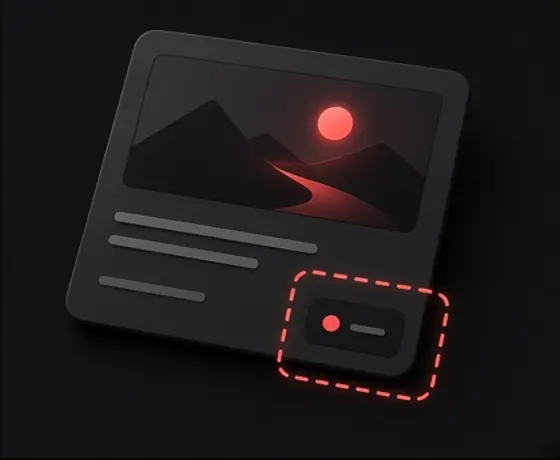
Timestamp duration badges
A solid badge occupies the lower-right area across feeds and search layouts, hiding anything placed underneath it.
Hover action buttons
Desktop views often surface overlay icons such as watch-later or playlist-save buttons across the upper corners when a cursor moves over the card.
Watch history progress bars
A red or colored playback bar runs along the very bottom edge of previously viewed content, cutting off slim bottom margins.
The bottom-right corner of a video thumbnail is the most vulnerable zone in modern feed layouts. In almost every major display format, this specific corner is reserved for the duration badge indicating the length of your video.
Despite this standard placement, many creators continue placing essential text, secondary logos, or emotional expressions directly in this corner, only to find them completely unreadable once published.
ThumbProof provides automated warnings and visual guides specifically tailored to this zone:
Bottom-right busyness warning
The visual audit analyzes pixel complexity and contrast in the lower-right quadrant, alerting you if dense graphic elements are detected there.
Duration badge simulation
You can input custom video durations to see how short or long timecodes cover the corner.
Composition reallocation
Keeping the lower-right quadrant empty or filled with simple, dark background elements ensures that mandatory platform timestamps never clash with your main message.
Inspecting Safe Zone Clearances at Scaled Dimensions
An overlay safe zone margin that appears minor on a high-definition 1280x720 canvas can swallow a massive proportion of your design when viewed on smaller screens.
On mobile feeds or compact sidebar recommendations, the physical footprint of the duration badge and title margins expands relative to the scaled-down thumbnail artwork.
Elements that maintain reasonable breathing room at full resolution often feel cramped once reduced.
Testing safe zone clearances across scaled dimensions helps identify compression bottlenecks:
Inspecting your design through the Safe Zone Checker across multiple dimensions guarantees that your key elements remain visible at any scale.
Sidebar scaling
At a compact 168x94 resolution, the duration badge covers a significantly larger percentage of the available visual area.
Mobile thumb reach
Mobile layouts introduce tight vertical gutters and adjacent UI chrome that make edge-aligned graphics look overcrowded.
Border safety margins
Maintaining at least a ten percent buffer zone inside all four perimeter edges ensures that slight platform crop variances never clip valuable artwork.
Frequently asked questions
What is a thumbnail safe zone?
A thumbnail safe zone is the area of your artwork that remains completely visible and unobstructed after platform interface elements—such as duration badges, hover icons, and progress bars—are overlaid.
Why does the bottom-right corner require special attention?
The bottom-right corner is where platform video duration badges are positioned. Placing important text, logos, or facial details in that corner causes them to be hidden behind the timestamp.
What does the bottom-right busyness warning indicate?
It indicates that the visual audit detected high visual detail, contrast, or complexity in the lower-right area of your image, suggesting that essential graphics may clash with the duration overlay.
Can I test safe zones for different video lengths?
Yes. You can customize the simulated video duration to see how short timestamps or longer hour-format badges cover the lower-right corner of your thumbnail.
Are platform overlay positions exact?
No. Overlay dimensions, padding, and font styles are simulated approximations that reflect common feed standards, though exact coordinates can vary by device, app version, and screen size.
Does the Safe Zone Checker modify or crop my original image file?
No. The checker simply displays overlay masks over your image in the browser canvas. It does not alter, crop, or edit your original file.
Keep your headline out from under the badge
One check before upload saves a re-export later.
More free tools and guides
 Video Thumbnail Size, Resolution, File Limits and Safe ZonesGuide
 High-CTR Thumbnail Checklist: 7 Visual Principles That Get NoticedGuide
 Title Truncation by Device: Pixel Widths, Not Character CountsGuide