 ThumbProof
Thumbnail resizer for exact sizes
Turn any export into a correctly sized thumbnail or vertical cover. Choose a preset, crop, pad or stretch, pick JPEG, WebP or PNG, and download a file that stays under the 2 MB limit.
- 100% local, never uploaded
- No sign-up
- Free
Resize an image in three steps
- 01
Add your image
Drop, click or paste any PNG, JPG or WebP file.
- 02
Choose size and fit
Pick a preset, then crop, pad with a color or stretch.
- 03

Download
Save a JPEG, WebP or PNG that stays under 2 MB.
Getting thumbnail sizes right
Why thumbnail size matters before you upload
Most video platforms recommend a 16:9 thumbnail at 1280×720 pixels with a minimum width of 640 pixels, and they reject or recompress files larger than 2 MB. Exports from design tools rarely match exactly.
A 4K frame grab is too heavy, a phone screenshot has the wrong ratio, and a square artwork gets letterboxed or cropped in ways you did not plan.
Resizing locally before upload means you decide what gets cut. If the platform crops or squeezes the image for you, faces and text near the edges are usually the first things to go.
Correct ratio
16:9 for regular videos, 9:16 for vertical covers, 4:5 or 1:1 for profile grids.
Enough pixels
1280×720 keeps text sharp on large screens and TVs.
Small enough file
staying under 2 MB avoids failed uploads and heavy recompression.
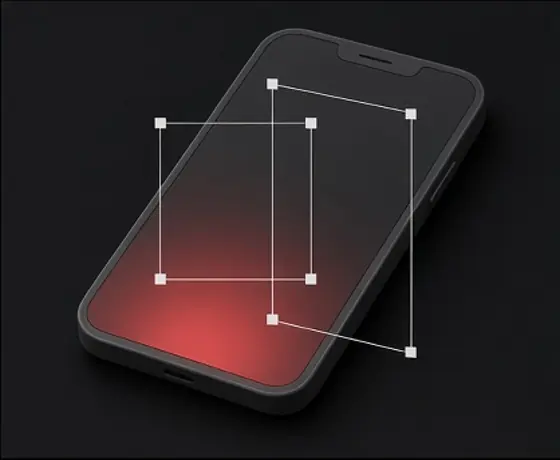
The resizer offers three ways to reach the target size. Each one suits a different kind of source image.
After resizing, check the result in the feed preview. A crop that looks fine at full size can still hide the subject at 168×94.
- 01
Fill and crop
scales the image until it covers the whole frame, then trims the overflow. Use the crop focus to keep the top, bottom, left, right or center. This is the best choice for photos and most thumbnails.
- 02
Fit inside with background
keeps the whole image visible and fills the empty space with a color you choose. Use it for logos, charts or square artwork you do not want cut.
- 03
Stretch
forces the image to the exact size without keeping its proportions. Only use it when the source is already almost the right ratio.
Choosing JPEG, WebP or PNG
JPEG is the safest choice for thumbnails. It is accepted everywhere and compresses photos and gradients well. WebP gives a similar look at a smaller size, but some upload forms still do not accept it. PNG is lossless and keeps flat colors and small text perfectly crisp, but files are often several times larger.
With “Keep the file under 2 MB” switched on, the resizer lowers JPEG or WebP quality step by step until the file fits. PNG cannot be compressed that way, so the result tells you when a PNG is still too large and suggests switching formats.
| Format | Best for | Typical 1280×720 size |
|---|---|---|
| JPEG | Photos, faces, gradients | 150–600 KB |
| WebP | The same, a little smaller | 100–450 KB |
| PNG | Flat graphics, tiny text | 0.8–3 MB |
Private by design
Everything happens on your device. The image is drawn onto a canvas in your browser, resized there and saved straight back to your computer. Nothing is uploaded, there is no account, and closing the tab removes the image from memory.
That matters for unpublished videos. Thumbnails often reveal a title, a guest or a product before launch, so keeping them off third-party servers is the simplest way to avoid leaks.
Frequently asked questions
What size should a video thumbnail be?
Use 1280×720 pixels at 16:9 for regular videos, with a minimum width of 640 pixels. Keep the file under 2 MB. For vertical covers use 1080×1920 at 9:16.
Will resizing make my thumbnail blurry?
Scaling down keeps it sharp. Scaling a small image up, for example from 640 to 1280 pixels wide, cannot add detail, so the result may look soft. Export from your design tool at the target size when you can.
How do I get a file under 2 MB?
Choose JPEG or WebP and keep the 2 MB option switched on. The resizer lowers the quality until the file fits and shows the final size before you download.
Which fit mode should I use?
Use fill and crop for photos and most thumbnails, and set the crop focus so the subject stays in frame. Use fit inside with a background color when nothing may be cut, such as logos or charts.
Is my image uploaded anywhere?
No. The image is processed with the canvas in your browser and the download is created on your device. Nothing is sent to a server.
Can I make 9:16, 4:5 and 1:1 versions?
Yes. Pick the 1080×1920, 1080×1350 or 1080×1080 preset, or enter a custom size. Then check the crops in the Shorts and Reels cover preview.
Then check it in a real feed
Resize first, then preview the result next to the competition.
More free tools and guides
 Video Thumbnail Size, Resolution, File Limits and Safe ZonesGuide
 High-CTR Thumbnail Checklist: 7 Visual Principles That Get NoticedGuide
 Title Truncation by Device: Pixel Widths, Not Character CountsGuide