ThumbProof
 14:28
14:28 14:28
14:28The duration badge ate the headline
“FOUND IT” sat in the bottom-right corner, right under the duration badge. The safe-zone overlay flags it at once. Moving the text up and to the left fixes it.
Open the Safe Zone CheckerDrop in up to four thumbnails and preview them in realistic desktop, mobile, search and sidebar feeds. Then run a squint test, check the safe zones, measure title truncation and get a visual audit score.
Drag up to 4 images here, click a slot, or paste. Each version gets its own title.
No account and no upload. The whole workflow takes about a minute.

Drag, click or paste up to four images. Give each version its own title.

Pick a niche, your channel name, views and duration so the feed feels real.

Switch views, toggle dark mode, and run the squint, grayscale and safe-zone checks.

Read the audit score and truncation meter, or run a blind A/B test.
Eight checks in one tab. Each one answers a single question about how your image will look in a real feed.
Desktop grid, mobile, search, sidebar, TV, tablet, channel page, history and every exact display size.
Hide 2–4 versions in a shuffled feed over 5 rounds, then see which one you spotted first.
See where the duration badge, hover icons and progress bar land on your design.
Blur or remove color to check whether the subject still stands out.
Pixel-width measurement shows where each layout cuts your title off.
A 0–100 score for resolution, file size, brightness, contrast, sharpness and corner detail.
Shrink oversized exports to a JPEG under 1.9 MB, right in the tab.
Nothing is uploaded. Images stay in your browser memory and are gone when you close the tab.
Four problems that look fine in an editor and fall apart in a feed.
14:2814:28“FOUND IT” sat in the bottom-right corner, right under the duration badge. The safe-zone overlay flags it at once. Moving the text up and to the left fixes it.
Open the Safe Zone Checker
Hundreds of small items at the same brightness turn into gray noise once blurred. The audit scores the contrast as low and suggests one large subject.
Run a squint test A
A B
BBoth versions look strong side by side. A blind test hides them in a busy feed for five rounds and records which one you click first, and how fast.
Start a blind testThe Complete Beginner’s Guide to Cooking Restaurant-Quality Ramen at H…ome in Ten Minutes
10-Minute Ramen That Beats Takeout
The truncation meter measures pixel width for each layout. The point of the title, “in ten minutes”, was hidden on desktop and mobile. Moving it to the front fixed both.
Read the title guide
Check high-contrast gameplay captures and character portraits against dark feed backgrounds while ensuring duration timestamps never block scoreboard text or character faces.

Preview product hardware photos across simulated search listings and desktop grids to verify that subtle gadget details and concise comparison titles remain clear.

Inspect scenic landscape compositions and personal portraits across mobile feeds to confirm that scenic horizons and emotional expressions maintain visual clarity at compact sizes.

Test tutorial headlines with the truncation meter and audit lesson graphics at small dimensions to ensure educational diagrams stay completely legible before uploading.
Evaluate vibrant dish close-ups against light and dark feed themes to verify rich color contrast and keep ingredient overlays clear of platform badges.

Preview 9:16 vertical video covers against native interface buttons and verify that centered crops display seamlessly on 1:1 and 4:5 profile grids.
| ThumbProof | Viewing in a design editor | Upload and check live | |
|---|---|---|---|
| See your thumbnail beside real-looking competition | |||
| Check at 168×94 and 120×68 | Manual zoom | After publishing | |
| Overlay safe zones | After publishing | ||
| Blind test multiple versions | |||
| Title truncation by layout | After publishing | ||
| Unpublished images stay private | |||
| Cost | Free | Subscription | Free |
A thumbnail preview tool allows video creators to inspect their artwork and titles in realistic browsing environments before publishing.
Instead of evaluating a design on a static, full-screen canvas inside an editing application, you can drop your image into simulated video feeds to see how it performs alongside competing content.
ThumbProof generates simulated desktop grids, mobile feeds, search listings, and sidebar recommendations directly in your browser.
This makes it simple to verify whether your focal point remains clear at smaller dimensions, whether text remains readable, and whether layout elements clash with the surrounding interface.
Beyond standard mockups, the tool provides a comprehensive pre-upload visual evaluation workspace.
You can compare up to four thumbnail candidates side by side, switch between dark and light interface modes, and measure title truncation with a dedicated pixel-width meter.
It also includes simulated overlay safe zones, a squint-test blur filter, grayscale mode, and an automated visual audit score evaluating resolution, file size, brightness, and contrast.
Because everything runs entirely client-side, your image files stay on your device without requiring an account or cloud upload.
Your thumbnail, surrounded by the competition
Most thumbnails are designed on high-resolution canvases at 1280x720 pixels, where fine details, thin lines, and subtle facial expressions look crisp and striking. However, audience members rarely experience thumbnails at full resolution.
In active video feeds, your graphic is scaled down dramatically across various viewing contexts.
A desktop three-column card displays your image much smaller than your editor, while a mobile feed or compact sidebar recommendation shrinks it down to dimensions as tiny as 168x94 or 120x68 pixels.
Previewing your design across the full spectrum of simulated display sizes highlights potential legibility issues before you publish:

Intricate illustrations or multi-word graphics that look balanced at 720p often become unreadable smudges on smaller screens.
A single, distinct visual focal point remains identifiable at 168x94 pixels, whereas cluttered compositions lose definition.
Applying a slight blur or grayscale filter simulates rapid scrolling, letting you confirm that your primary subject still stands out instantly.
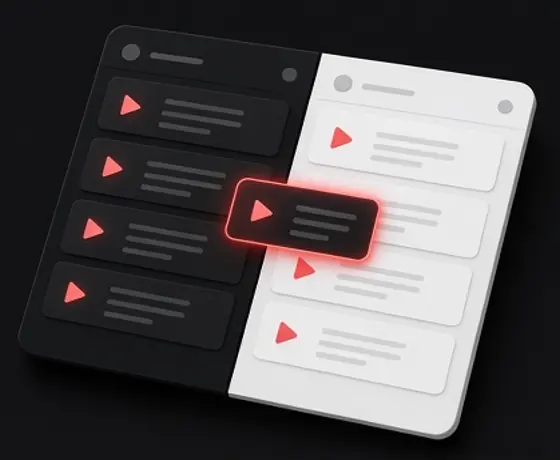
Viewers navigate video platforms under wildly different interface themes.
While many use dark mode during evening hours or across desktop setups, a substantial portion of mobile and daytime audiences view content against bright white backgrounds.
A thumbnail that stands out against a deep charcoal background can lose its boundary definition or look muddy when framed by a clean white canvas, and vice versa.
ThumbProof lets you toggle between simulated dark and light feed themes instantly, ensuring your visual hierarchy performs consistently under both viewing conditions:
Dark graphics with deep shadow edges risk blending invisibly into dark feed interfaces, losing their perceived container shape.
High-key, pale designs can bleed into white layouts if they lack sufficient framing, contrast, or edge definition.
Vibrant accents like cyan, neon green, or yellow shift in perceptual intensity depending on whether the surrounding interface is pitch black or light gray.
A video thumbnail never exists in isolation; it functions as half of a two-part presentation alongside the video title. When both elements repeat the exact same phrasing or imagery, you waste valuable screen real estate.
When they completely contradict one another, browsing viewers experience confusion.
Successful packaging occurs when the graphic establishes the visual scene and emotional hook, while the title delivers necessary context, specificity, and curiosity.
Simulating the full title card alongside your graphic reveals how the two pieces cooperate in real browsing scenarios:
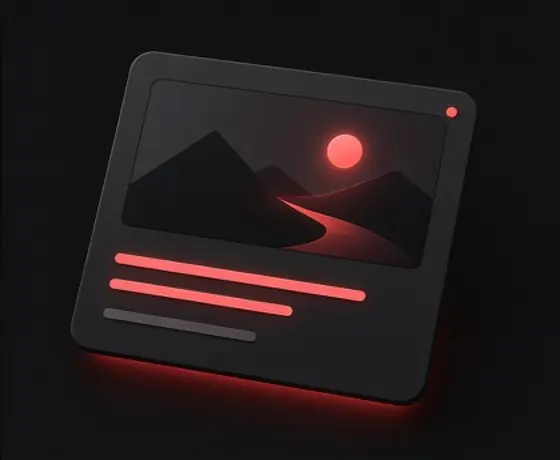
If your title already names a specific product or subject, placing those identical words in large block letters across the thumbnail is often unnecessary.
An urgent, expressive thumbnail paired with a dry, technical title creates a disjointed expectation that can dilute interest.
On mobile feeds, the thumbnail appears stacked directly above the headline, whereas desktop search listings place them side by side. Previewing both orientations ensures a natural reading path.
Rushing a video out the door without a final packaging review often leads to preventable oversights like hidden text, awkward cropping, or bloated files.
Integrating a brief, systematic pre-upload check into your editing workflow ensures every visual asset meets technical standards and layout requirements before public release.
Drag and drop up to four candidate graphics into the simulated feed to evaluate them alongside your proposed title.
Measure the pixel width of your title to ensure critical keywords appear before the estimated ellipsis cutoff in mobile and sidebar layouts.
Verify that essential text, faces, and brand marks stay clear of the bottom-right timestamp overlay and playback progress bar.
Confirm that your file remains under the 2 MB limit, resolution matches 1280x720, and the bottom-right sector is clean.
Activate grayscale or blur mode to confirm that your primary subject remains recognizable even during rapid scrolling.
ThumbProof’s presets follow published platform and accessibility guidance. Here is what the official pages say, quoted directly.
“Have a resolution of 3840 x 2160 pixels for videos and 2160 x 3840 for Shorts, with a minimum width of 640 pixels for videos and a minimum height of 640 pixels for Shorts.”
Add custom thumbnails — video platform help centerThumbProof previews 16:9 images at every common feed size and exports 1280×720 or larger. Any 16:9 image of at least 640 pixels wide is accepted.
“Mobile: 2 MB for video thumbnails or 10 MB for podcasts.”
Add custom thumbnails — video platform help centerThe audit flags files over 2 MB and the local compressor brings them under 1.9 MB, so the same file works from a phone too.
“You can compare the performance of up to three video thumbnails to gain insights that help you with your content strategy.”
Test & compare thumbnails — video platform help centerPlatform tests run on live traffic after publishing. The blind tester lets you narrow 2–4 drafts down before you get there.
“The visual presentation of text and images of text has a contrast ratio of at least 4.5:1”
Understanding SC 1.4.3 Contrast (Minimum) — W3C WCAG 2.2That rule is written for web text, but it is a useful floor for thumbnail text too. The grayscale and squint checks show whether your words still separate from the background.
Checked on October 27, 2026. ThumbProof is independent and not affiliated with any platform quoted here.
ThumbProof is a free, independent, browser-based preview tool that allows creators to test video thumbnails and titles inside simulated desktop, mobile, search, and sidebar feeds before publishing.
No. Everything runs entirely within your browser using client-side processing. Your images are never uploaded to any remote server or stored in the cloud.
No. All feed grids, search listings, sidebar cards, and text cutoffs are simulated approximations designed to give you a realistic visual reference across standard viewing dimensions.
No. ThumbProof does not influence platform algorithms, search rankings, or click-through rates. It is strictly an inspection and layout tool for evaluating visual legibility and interface placement.
The meter measures the approximate pixel width of your title string using typical platform font metrics, showing roughly where an ellipsis might cut off your text across desktop grids, mobile feeds, search listings, and sidebar recommendations.
The visual audit calculates a score from 0 to 100 based on standard technical parameters: image resolution and aspect ratio, file size relative to the common 2 MB limit, overall brightness, contrast, sharpness at a compact 168x94 size, and visual busyness in the bottom-right corner.
Yes. If your thumbnail exceeds 2 MB, ThumbProof offers a local client-side compression option that outputs an optimized JPEG under 1.9 MB directly in your browser.
No. ThumbProof is completely free and requires no account, registration, or login. The tool is supported by advertising.
No. ThumbProof is an independent utility and is not affiliated, associated, authorized, endorsed by, or in any way officially connected with any video platform or service.
Yes. You must be at least 16 years of age to use this website.
Free, private and instant. Drop an image in and you will know in a minute.
 Video Thumbnail Size, Resolution, File Limits and Safe ZonesGuide
 High-CTR Thumbnail Checklist: 7 Visual Principles That Get NoticedGuide
 Title Truncation by Device: Pixel Widths, Not Character CountsGuide